![logo_moinai-full-transparent-1.png]](https://helpcenter.moin.ai/hs-fs/hubfs/logo_moinai-full-transparent-1.png?height=40&name=logo_moinai-full-transparent-1.png)
The moinAI live chat is an integrated part of the moinAI solution and is fully activated and managed in the moinAI Hub. No separate technical integration is required. Additional information on setup, group management, and automatic translation can be found via the links provided.
Live chat enables the handling of complex issues that require extensive consultation and cannot be fully resolved by the AI chatbot. A corresponding form ensures a seamless transition between automated and personal support.
The main advantages of live chat are that simple issues can be resolved automatically by the chatbot, allowing the service team to focus on more demanding enquiries. The AI chatbot either takes over the entire problem-solving process or performs the necessary pre-qualification for the service team. Direct integration into the existing moinAI system also enables a user-friendly handover to ongoing chat without changing systems and with almost immediate personal feedback.
The individual features of the live chat solution are described in detail below:
- Roles
- Settings
2.1 Automatic translation
2.2 Overbooking coefficient
2.3 Agents: Group management & agent profile
2.4 Timeout limit - Conversation log
- Create and assign tags
- Shortcodes (templates)
- Upload files
- Alert tones & notifications
- Statistics
1. Roles
There are two different roles with different permissions in moinAI live chat.
- Supervisor: Can go online or offline, close their own and other live chat agents' live chats, view statistics and all chat histories.
- Agents: Can go online or offline, close their own live chats and view their own past chat histories.
2. Settings
You can access the live chat settings via the menu item Bot Settings → Livechat. The individual setting options are described below.

2.1 Automatic translation
The automatic translation of live chat messages is described in this article.
2.2 Overbooking coefficient
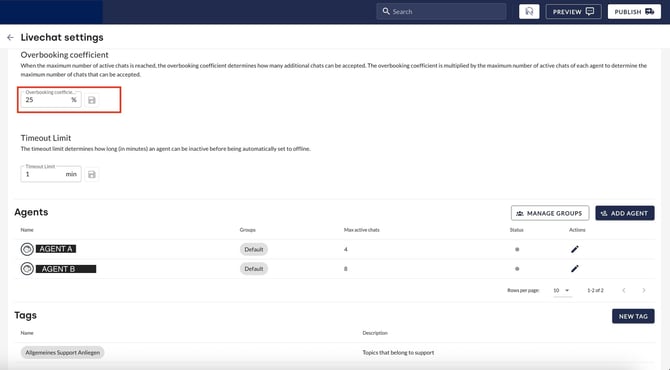
The overbooking coefficient determines how many additional chats can be accepted as a percentage of the set maximum.
Example
Agent A has a maximum number of active chats of 4, Agent B has a maximum number of 8. If the overbooking coefficient is set to 25%, Agent A can handle a total of up to 5 live chats, Agent B up to 10. All other live chat requests are forwarded to email takeover. Click on the disk icon  to save the setting.
2.3 Agents: Group management & agent profile
Group management
The assignment of agents and other aspects relating to the group management of live chat agents are described in this article.
Agent profile
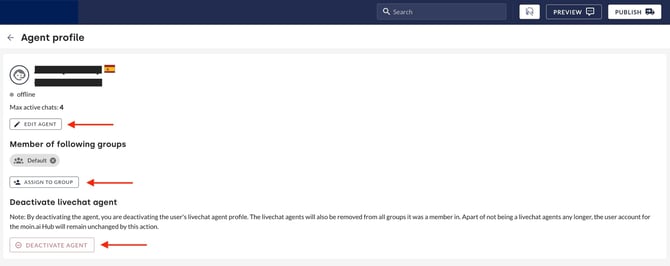
Individual settings for live chat agents are configured in the agent profile. Agent profiles can be accessed via the menu item Settings → Livechat. In the Agents area, click on the pencil icon to open the respective profile. The following aspects can be configured in the agent profile:
- Edit agents: The name, maximum number of live chats and spoken language of live chat agents can be configured and defined.
- Member of the following groups: Assigned groups can be removed, added or changed.
- Deactivate agent: Live chat agents are no longer available for live chat.

2.4 Timeout limit
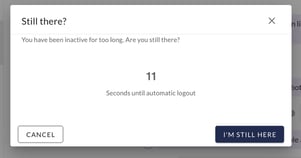
The timeout limit specifies how many minutes of inactivity will cause a live chat agent to be automatically taken offline. Click on the disk icon  to save the setting.
Example countdown after timeout limit was reached
3. Conversation log
For new live chats, agents are shown the entire chat history and the original form that triggered the live chat. The live chat agents are provided with the user's form entries so that they can refer to these entries in the live chat.
Live chat agents can end live chats at any time. After ending, the AI chatbot takes over the conversation again.
If no live chat agents are available, the standard email takeover is offered.
4. Tags
Tags offer the option of categorising live chat conversations and filtering them by category in the statistics. Any tags can be set up. Tags are assigned during or after the live chat conversation has ended.
4.1 Create tag
- Clicking on the New Tag button opens the Add New Tag window.
- Enter the tag name and tag description in the respective fields and confirm by clicking on Add Tag.
✓ The tag is listed in the Tags area.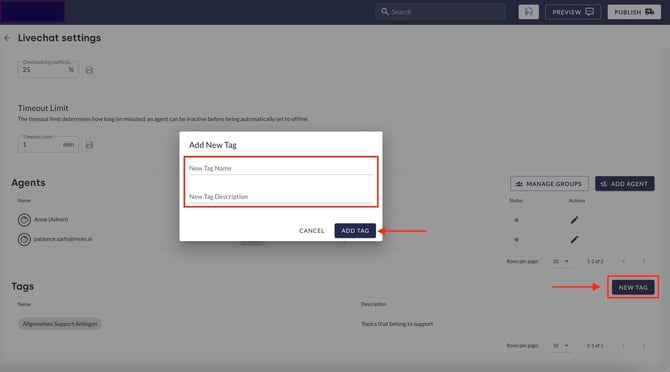
- Clicking on the name or description of the respective tag changes the information. This is confirmed and saved by pressing the ENTER key.
4.2 Assign tag
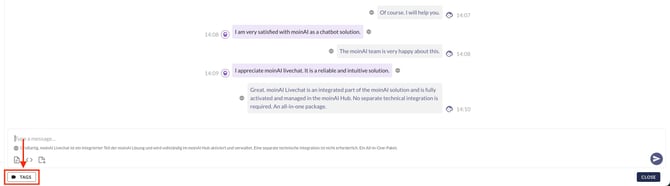
In live chats, tags are assigned using the Tag button below the chat input field. Tags can be assigned during or after the live chat.
5. Shortcodes (templates)
Shortcodes are pre-written messages. They enable live chat agents to respond to recurring messages more quickly. This improves the user experience, ensures consistent quality and partially automates live chat conversations.
Examples of use cases include greetings, farewells, recurring questions, responses with relatively static information content, etc.
The setup and use of shortcodes are described in this article.
6. Upload files
In addition to simple text entry, file uploads are also possible. This article explains which file formats are permitted and what to consider when uploading and sending files in live chat.
7. Alert tones & notifications
An automatic notification function is integrated, which alerts live chat agents to new live chats and chat messages.
Browser notifications and alert tones from the hub must be activated in the profile. The volume and sound can be adjusted individually.
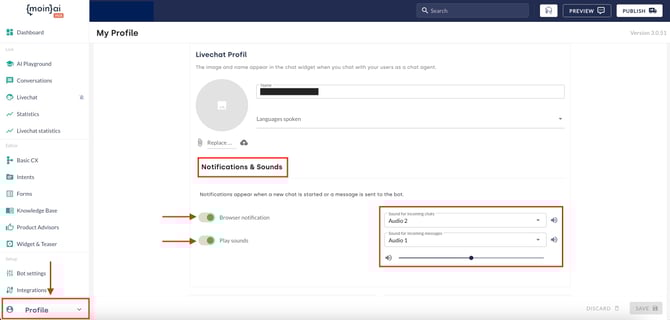
System and browser settings must allow browser notifications. Identifying and resolving common issues with desktop notifications and audio alerts for new live chat conversations and incoming messages are described in this article.
8. Statistics
The live chat statistics provide an overview of the frequency of use and an overview of the chats that have been converted into a live chat. This data can be used to optimise the AI chatbot and reduce the number of live chat requests in the long term.
Access is via the Livechat Statistics menu item. Statistics can only be viewed with owner rights/by supervisors.
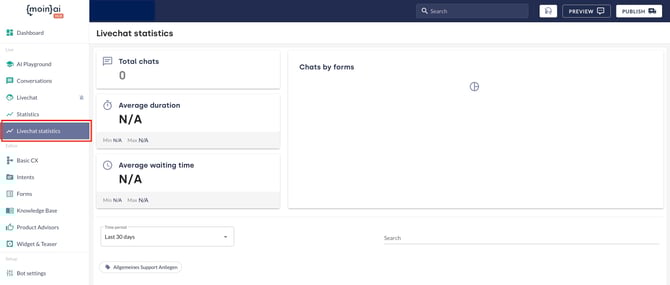
- Total number of chats
- Average duration
- Average waiting time
- Number of chats by form
Live chat statistics can be disabled by moinAI (Customer Success Team).