![logo_moinai-full-transparent-1.png]](https://helpcenter.moin.ai/hs-fs/hubfs/logo_moinai-full-transparent-1.png?height=40&name=logo_moinai-full-transparent-1.png)
Notifications and audible alert tones are essential functions for the timely processing of incoming live chat conversations. If one of these functions fails, there can be various technical causes – both at the system and browser level.
The following article describes the most common sources of error, typical error messages and specific steps for activating the notification and audio functions in the most important browsers.
- Quick check
- General error messages and their meanings
- Step-by-step solutions by platform and browser
3.1 macOS – System-wide sharing
3.2 Safari
3.3 Google Chrome, Microsoft Edge, Brave
3.4 Firefox - Overview of the most common scenarios and solutions
1. Quick check
The quick check provides an overview of the most common causes that can be resolved without further settings:
- Browser window position: Notifications only appear when the tab or window is in the background.
- Website permissions: For notifications and autoplay, permissions in the browser must be explicitly set to Allow.
- macOS sharing: The Safari, Chrome, Opera and Firefox browsers also require system-wide notification permissions (instructions here).
2. General error messages & their meaning
The following section describes typical error messages, explains their meaning and refers to the respective solutions.
NotAllowedError: The request is not allowed by the user agent or the platform in the current context, possibly because the user denied permission.
- Meaning: The browser does not have the necessary permissions for autoplay or desktop notifications (instructions for granting permission).
play() failed because the user didn't interact with the document first. https://goo.gl/xX8pDD
- Meaning: The user has not yet clicked in the current tab; audio is therefore blocked as long as sound is set to Automatic (default). This can be resolved by granting website permissions.
3. Step-by-step solutions by platform and browser
Notifications and alert tones may be blocked by system or browser restrictions. The following sections describe the necessary settings by platform and browser.
3.1 macOS (system-wide)
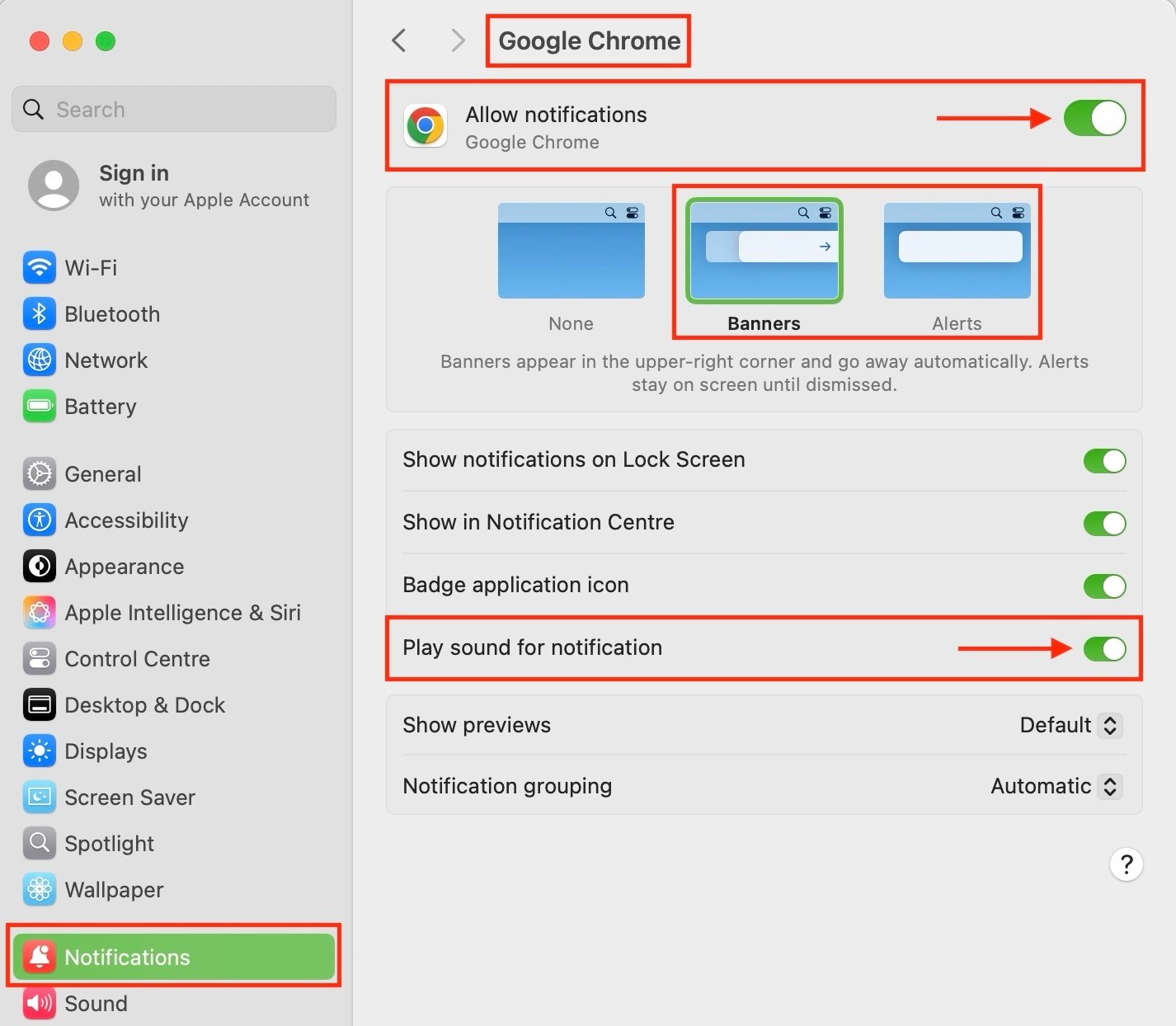
Notifications can be activated via:- System Preferences → Notifications
- Select the respective browser (e.g. Chrome).
- Activate Allow Notifications.
- Select Banners or Alerts.
- Activate Play Notification Sound.
3.2 Safari (browser)
|
Problem |
Lösung |
|
🔊 Sound is not playing Error message: NotAllowedError |
Settings → Websites → Auto-Play (domain moin-hub) set to Allow all auto-play. |
|
🔔 No notification |
Settings → Websites → Notifications (domain moin‑hub) set to Allow. |
3.3 Google Chrome, Microsoft Edge, Brave (browsers)
The procedure for Google Chrome, Microsoft Edge and Brave browsers is described below.- Click on Page settings (padlock icon) to the left of the URL.
- Set Notifications to Allow.
- Open Page settings → Permissions → Sound → Allow (Important: not Automatic (default)).
- If notifications still do not appear: check macOS notifications.
3.4 Opera One (browser)
The following describes the procedure for the Opera One browser.- Site settings → Sound → Allow.
- Page settings → Notifications → Allow.
- If notifications still do not appear: check macOS notifications Opera One.
3.5 Firefox (browser)
The following describes the procedure for the Firefox browser.
- Click on Site Information next to the URL.
- Select Autoplay → Allow Audio & Video.
- Send Notifications → Allowed.
- If notifications still do not appear: check macOS notifications for Firefox.
4. Overview of the most common scenarios and solutions
|
Problem |
Cause |
Solution |
|
No sound, even though permissions have been granted. |
Tab has not been clicked after loading and sound is set to Automatic (default) in Chrome/Opera. |
|
|
Notifications only appear in the foreground tab |
The browser only allows desktop notifications if the window is not in focus (design specification). |
Test with a minimised or second window. |
|
macOS banners do not appear |
Browser has permissions, but macOS notifications are disabled |