![logo_moinai-full-transparent-1.png]](https://helpcenter.moin.ai/hs-fs/hubfs/logo_moinai-full-transparent-1.png?height=40&name=logo_moinai-full-transparent-1.png)
Receiving notifications about new live chats directly in Microsoft Teams (also MS Teams) speeds up the response to customer enquiries. This means there is no need to constantly monitor the hub. Information is automatically forwarded from moinAI to Microsoft Teams via webhooks. This saves time in customer service and ensures a smooth flow of conversation.
The configuration of notification sounds in the Hub account is described in this article. Notes and potential causes of errors regarding notification sounds and browser notifications can be found in this article.
1. Configuration in Microsoft Teams
Prerequisites for setup
-
Permissions in Microsoft Teams to create workflows in the desired channel.
-
A chatbot form used for the live chat or to collect user data.
Step 1: Prepare the channel
Select an existing channel in Microsoft Teams or create a new channel for notifications.
Step 2: Open the Workflows section
Click the three-dot menu on the left-hand side in Microsoft Teams and select the Workflows option.
Step 3: Search for Webhook
Enter the term “Webhook” in the search bar and select the relevant item for incoming webhooks.
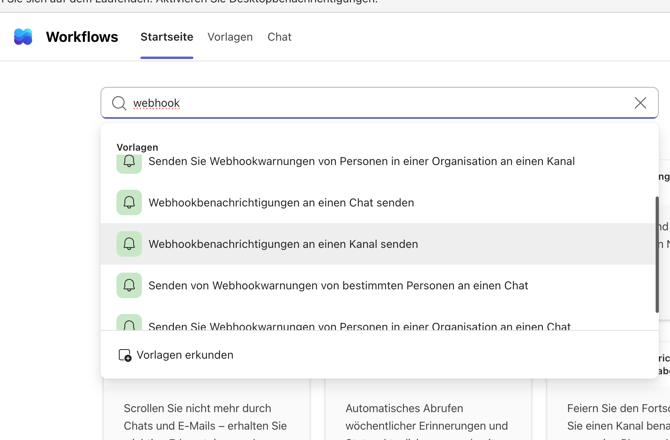
Step 4: Assign team and channel
Enter the desired team and the specific channel in which the notifications are to be displayed.
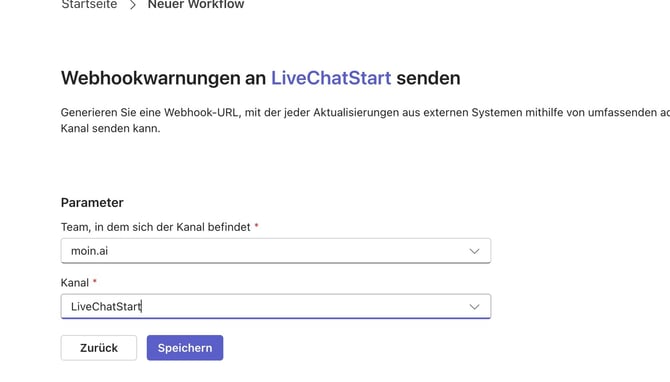
Step 5: Copy the webhook link
After clicking Save, a new window will appear. Click on the Copy webhook link option. You will need this URL for the subsequent setup in the moinAI Hub.
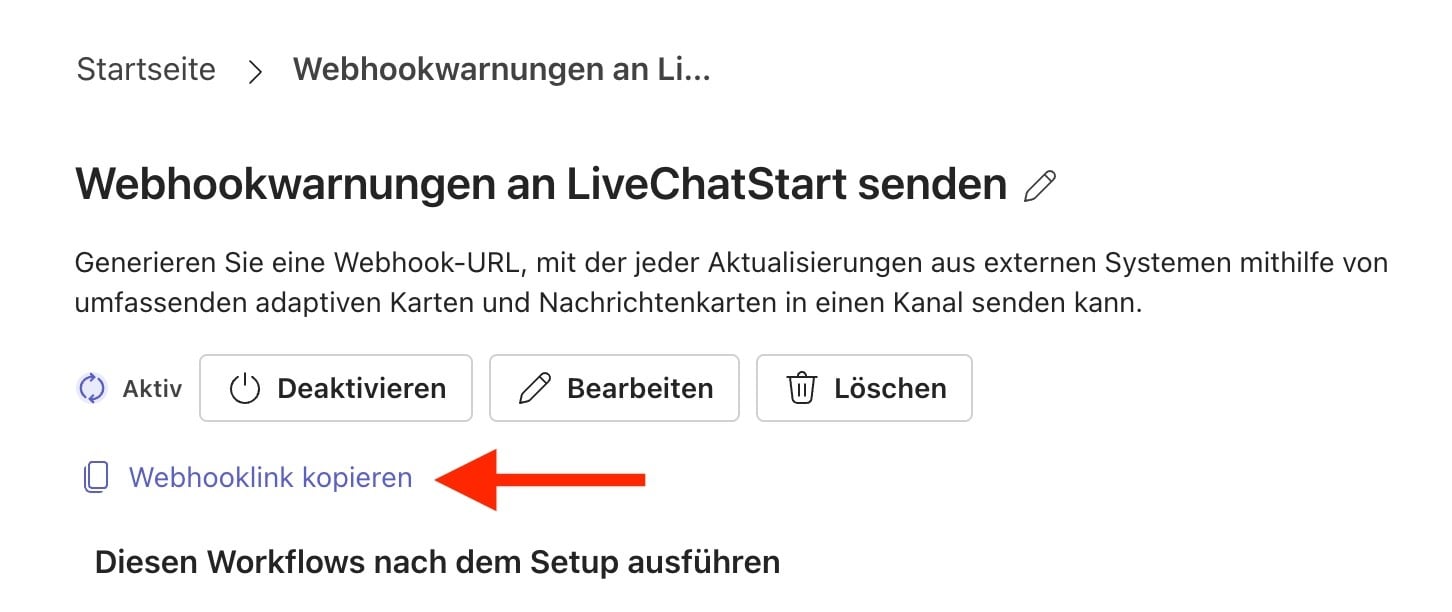
2. Create a webhook in the moinAI hub
Step 1: Start creating the webhook
Go to the menu item Integrations → Webhooks and click the Create Webhook button to start creating a new webhook. You can find more information about webhooks in this article.
Step 2: Define the URL and method
Paste the URL you copied from Microsoft Teams into the corresponding field. Select POST as the HTTP method.
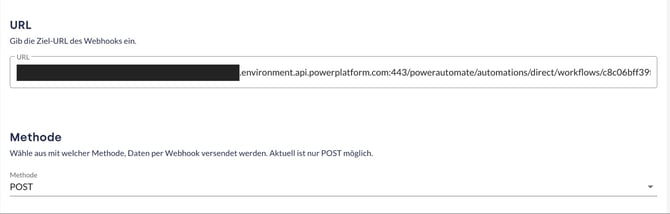
Step 3: Enter the webhook body
The following structure must be entered exactly as shown in the body text field:
{
  "type": "message",
  "attachments": [
    {
      "contentType": "application/vnd.microsoft.card.adaptive",
      "contentUrl": null,
      "content": {
        "$schema": "http://adaptivecards.io/schemas/adaptive-card.json",
        "type": "AdaptiveCard",
        "version": "1.2",
        "body": [
          {
            "type": "TextBlock",
            "text": "A live chat has been started.  {{user_livechat_message}}"
          }
        ]
      }
    }
  ]
}
When configuring the webhook body, only the content of the ‘text’ field (in the JSON code, following ‘text’:) may be modified. The rest of the structure must remain unchanged, as Microsoft Teams will otherwise be unable to process the message correctly.
3. Integrate the webhook into the form
Step 1: Select the form
Navigate to the form in the moinAI hub that is responsible for starting the live chat or for collecting data from users.
Step 2: Link the webhook
Add the newly created webhook to the form settings so that the notification is triggered automatically when the form is submitted.
Step 3: Prepare context variables
If context variables are used in the message text (such as the variable {{user_livechat_message}} in the JSON example above), these variables must be set within the form before the webhook is triggered. The values can be assigned statically or generated dynamically via user input.
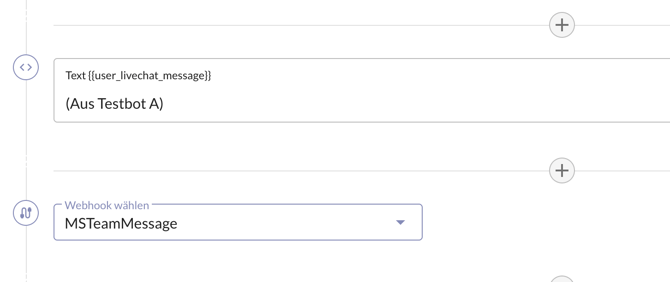
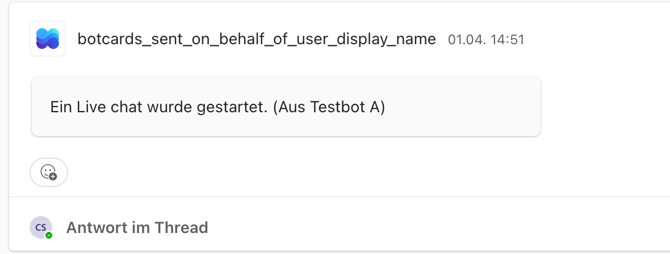
Including context variables in the text field (such as {{uniqueUserId}}) helps to distinguish individual events within a Microsoft Teams channel. This makes it easier to tell different users’ conversations apart.