![logo_moinai-full-transparent-1.png]](https://helpcenter.moin.ai/hs-fs/hubfs/logo_moinai-full-transparent-1.png?height=40&name=logo_moinai-full-transparent-1.png)
All channels access the same chatbot knowledge base, i.e. the topics that the AI chatbot understands using artificial intelligence. Rolling out to websites in other markets via an AI chatbot channel is the ideal solution, provided that the expected user enquiries do not differ thematically, or differ only slightly, depending on the market.
Typical use cases:
An existing chatbot in another language is created using a channel
The same topics with customised response content on different websites (e.g. newspaper publishers with different regional websites)
- Add channels
- Define use case
- Switch between channels
- Response content & answers
- Testing
- Website integration
- Hub accounts & channel permissions
In the moinAI Hub, the channel can be changed in the Statistics, Topics, Conversation, Widget & Teaser and Preview sections.
1. Add channels
By default, the chatbot only has one channel set up in German. To support multiple languages or use different delivery channels, additional channels can be added. The following section describes how to create a new channel.
-
Open the channel overview via the menu item Bot Settings > Channel Management.
-
Click on the New Channel button. The New Channel window will then open.
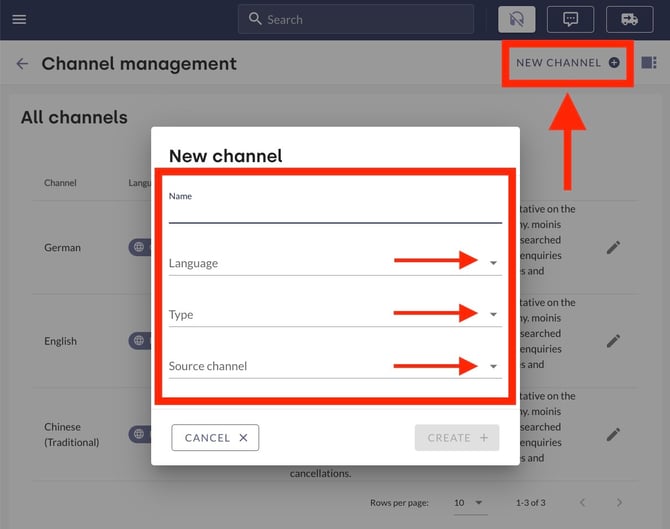
- Fill in the following fields in the dialogue box:
- Name: Assign a name to the new channel. The name is for internal reference and can be changed later.
- Language: The selection of available channel languages depends on your licence. A complete overview of supported languages can be found in this article.
- Type: Refers to the delivery channel for the chatbot conversation. If the moinAI widget is used, select Widget. The alternative delivery method WhatsApp can be enabled via the Customer Success Team.
-
- Source channel: Select an existing channel as a template. All content will be copied. If a channel in a different language is selected, the content will be automatically translated into the language of the new channel. Finally, the content and URLs must be localised.
- Clicking Create creates the new channel, which then appears in the channel overview.
After creating a channel, the use case should be defined. The use case is crucial for the correct classification and processing of incoming chatbot enquiries.
2. Define use case
The use case of the AI chatbot sets the framework. As in a conversation between two people, narrowing down the topic in advance helps to place the queries in the correct context. Defining the purpose of use provides a broader understanding of the incoming queries thanks to this contextual knowledge. A distinction is made between relevant and meaningless queries.
The use case must always be defined, regardless of the number of channels, as otherwise comprehension problems may arise.
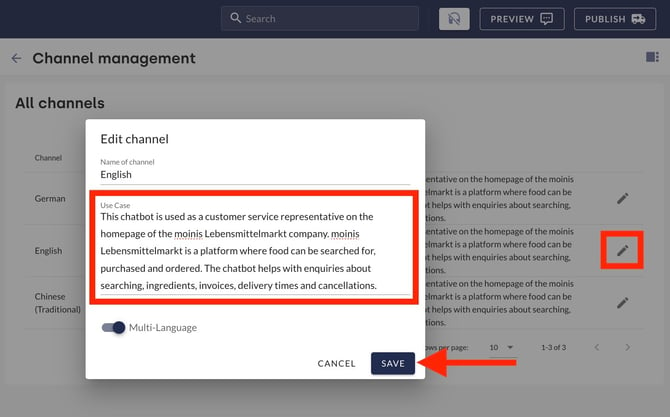
The use case is defined in the menu item Bot Settings > Channel Management > Pencil Icon > Use Case. Click Save to apply the entry.
Important: Ideally, the use case should be specified in English, regardless of the channel language. If you do not know English, an online translation tool can help.
| ✅ This belongs in the use case | ❌ That belongs somewhere else | Example: Area of application for a transport company |
|
Contextual information
|
The type of communication (e.g. always using informal language, responding objectively, etc.) is specified in the communication rules. |
This AI chatbot is used as a customer service representative on the ABC website. ABC transports hazardous goods and is the market leader in hazardous goods transport in Germany, Austria, Switzerland, Luxembourg and Liechtenstein. |
Further examples
- Company markets chatbot as a product: This chatbot is used as a customer service representative on the homepage of moinAI, a SaaS tool for automating customer service. The chatbot assists with enquiries about products, costs and areas of application.
- Company is a platform for property listings: This chatbot is used as a customer service representative on the homepage of the moinis real estate company. moinis real estate is a platform where properties can be listed for sale and searched for. The chatbot helps with enquiries about searching, listing, invoices, contracts, cancellations and revocations.-
- Company produces and markets food: This chatbot is used as a customer service representative on the homepage of the moinis food market company. moinis food market is a platform where food can be searched for, purchased and ordered. The chatbot helps with enquiries about searching, ingredients, invoices, delivery times and cancellations.
In the instructions, multilingual support can be enabled via a toggle switch. Further information on the multilingual toggle function, as well as how it differs from the channels designated for specific languages, is provided in this article.
3. Switch between channels
Channel filters are displayed in the topic overview, the response editor, statistics, the teaser, forms and the preview.
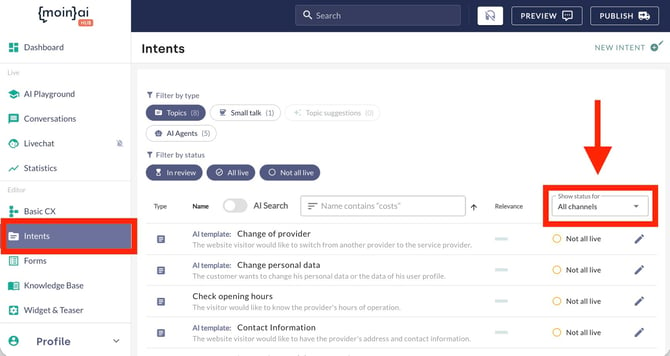
In the topic overview, the relevant channel can be selected via the "Show status for" drop-down menu. The status of a topic can be defined on a per-channel basis. It is then possible to filter by channel in the topic overview.
4. Response content & answers
All existing content can be transferred to the new channel in edit mode and, if required, automatically translated. Content can be transferred to another channel, including automatic translation, at any time on a topic-by-topic basis. Instructions can be found in this article.
5. Testing
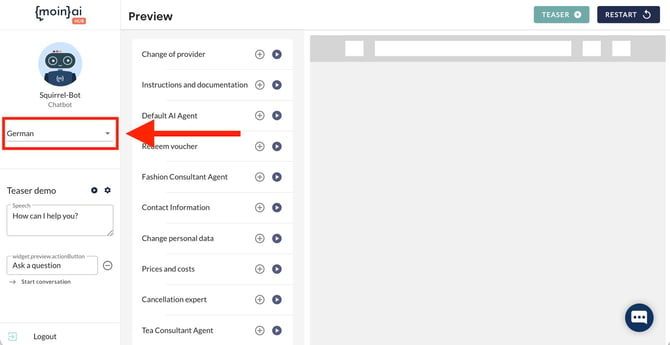
The content of all channels can be tested in the preview. The channel can be changed on the left-hand side.
6. Website integration
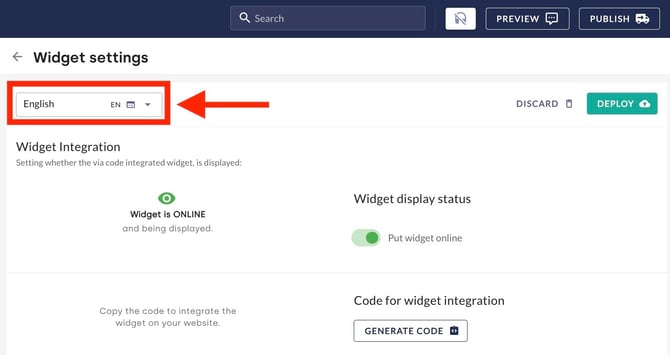
To go live with the new channel, it must be integrated into the relevant website domain using the corresponding code. The respective integration codes can be found in the Hub under the menu item Widget & Teaser > Widget Appearance. The widget design for each channel can also be customised there. More information on integrating the channel into the website can be found in this article.
7. Hub accounts & channel permissions
In the moinAI Hub, you can precisely control employees’ access to individual channels. Chatbot owners can selectively block, hide or deactivate specific channels for individual users. This ensures that team members only have access to the channels relevant to their respective areas of responsibility.
Step-by-step instructions on managing channel restrictions in user settings can be found in the article on user management.