![logo_moinai-full-transparent-1.png]](https://helpcenter.moin.ai/hs-fs/hubfs/logo_moinai-full-transparent-1.png?height=40&name=logo_moinai-full-transparent-1.png)
The moinAI Hub appears after login and is the heart of the AI chatbot. At first glance, the Hub can seem a little overwhelming, so the basics are explained here briefly. The Hub is where content is maintained, conversations are analysed and settings are adjusted.
Note: The Hub also works on mobile devices and adapts to the screen size. The full overview is therefore available on the go at any time.
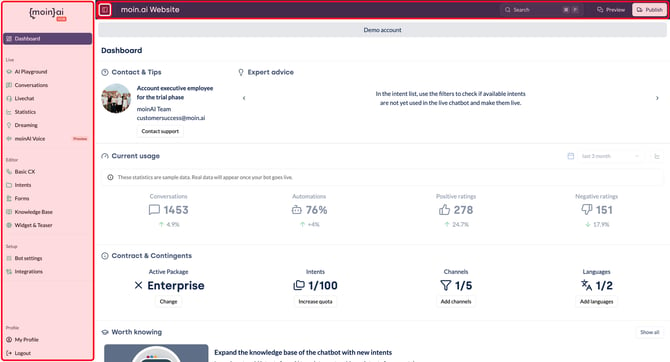
The Hub consists of the top menu bar with Search, Preview and Publish and the left menu bar with the individual areas.
1. Top menu bar
1.1 Hide and show the left menu bar
1.2 Search
1.3 Preview
1.4 Publish
2. Left menu bar
2.1 Dashboard
2.2 AI Playground
2.3 Conversations
2.4 Live chat
2.5 Statistics
2.6 Dreaming
2.7 moinAI Voice
2.8 Basic CX
2.9 Intents
2.10 Forms
2.11 Knowledge Base
2.12 Widget & Teaser
2.13 Bot settings
2.14 Integrations
2.15 Profile
1. Top menu bar
The top menu bar is visible in all areas of the Hub. From left to right, it contains the sidebar icon, the name of the AI chatbot, Search, Preview and the Publish button.
1.1 Hide and show the left menu bar
A click on the sidebar icon on the far left of the top menu bar hides the left menu bar. The open area then has more space, for example for conversations or the editor. Another click on the icon shows the menu bar again.
1.2 Search
The Search finds an intent quickly. The search works with the name of the intent or with a reference variant, i.e. a typical question about the intent. The keyboard shortcut ⌘ + P also opens the search.
1.3 Preview
The Preview button opens a current test version of the AI chatbot. Saved content can be tested there before it goes live. The link to the Preview can also be shared with other testers. More details are in the article The Preview.
1.4 Publish
The Publish button opens the Publishing status overview. The overview lists all content, such as intents and forms, that has changed since the last publication, broken down by channel. Changes can be published individually or all at once with Publish all.
2. Left menu bar
The left menu bar lists the areas of the Hub, grouped into Live, Editor, Setup and Profile. A click on a menu item opens the respective area on the right.
2.1 Dashboard
The Dashboard shows the responsible contact person under Contact & Tips. The Contact support button sends questions or feedback directly to the Customer Success Team. Expert advice provides tips on optimising the AI chatbot. Current usage summarises the key figures, and Contract & Contingents shows the licence package as well as the intents, channels and languages in use. Extensions can be requested here directly.
2.2 AI Playground
The AI Playground is the place to enter test queries, check and compare the generated answers of the AI agents and correct the recognition with feedback, for example with thumbs up or down. Resources can also be assigned to an AI agent and sources searched.
2.3 Conversations
The Conversations area shows the conversations between users and the AI chatbot with the complete chat history. Filters include ratings, conversions and enquiries that were not understood.
2.4 Live chat
In the live chat, employees handle complex enquiries or enquiries that require detailed advice and that the AI chatbot cannot fully resolve. The handover from the AI chatbot to the live chat takes place via a form.
2.5 Statistics
The Statistics menu item evaluates all interactions between users and the AI chatbot, for example conversations, automation, ratings, conversions, human takeovers and top intents. By default, the view shows the last 28 days, and the calendar icon adjusts the period. Focus reports provide more detailed analyses, and the data can be exported as PDF or CSV.
2.6 Dreaming
Dreaming checks the AI chatbot automatically every week. It analyses user enquiries, finds unanswered intents and weak answers and gives recommendations that can be implemented directly in the Hub. The analysis requires at least 200 conversations in the analysis period.
2.7 moinAI Voice
With moinAI Voice, the AI chatbot can be used as a voice assistant, for example on the phone. The menu item is marked Preview in the Hub.
2.8 Basic CX
The AI chatbot uses conversational design elements to guide the conversation with users. The elements Welcome, Not understood, Happy path, Unhappy path, Rating, Thanks and Unrequested file upload are in the Basic CX menu item. They control the general interaction, appear at various points in a conversation and can be customised in the Hub.
2.9 Intents
Under Intents, the intent overview shows all content of the AI chatbot: editorial intents, small talk and AI agents. Filters for type and status narrow down the overview. The content of the answers can be edited in the individual intents.
2.10 Forms
The Forms menu item is the place to create and customise forms. With forms, the AI chatbot collects information from users in the chat and forwards it, for example by email to a service team. The handover to the live chat also uses a form, the takeover process.
2.11 Knowledge Base
The Knowledge Base contains the resources on which the AI agents base their generated answers, for example websites, PDF and CSV files, text documents or question-answer pairs. The AI Agent drop-down menu at the top right assigns resources to individual AI agents and sets the status of the AI agents. Settings such as instructions and guardrails for the AI agents are also defined here.
2.12 Widget & Teaser
The Widget & Teaser area is the place to adjust the chat widget settings and retrieve the integration codes for the website. Teasers can also be set up here to draw attention to the chat service at the chat widget.
2.13 Bot settings
Bot settings offer numerous setting options for the AI chatbot. These include the management of users with access to the Hub and their roles, see User management, the privacy settings and the channel management, where additional channels are created. Bot settings are available to users with the Manager role.
2.14 Integrations
Integrations connect the AI chatbot to other systems, for example live chat and CRM systems or shop systems such as Shopify and Shopware. The Integrations section of the Help Center gives an overview of all options, including webhooks, the MCP server and AI actions.
2.15 Profile
The Profile area is at the very bottom of the left menu bar. My Profile opens the personal account settings. Logout ends the session in the Hub.