![logo_moinai-full-transparent-1.png]](https://helpcenter.moin.ai/hs-fs/hubfs/logo_moinai-full-transparent-1.png?height=40&name=logo_moinai-full-transparent-1.png)
The moinAI AI chatbot uses conversation guidance elements to interact with users. You can customise these elements in the moinAI Hub under the menu item Basic CX. These elements steer standardised interactions and trigger at central touchpoints within a conversation. The elements include the Greeting, Not understood, the Happy path, the Unhappy path, the Rating, the Thanks element, and the Unrequested file upload.
- General functions and editor
1.1 Store response variants
1.2 Advanced context menu and change history - Welcome
- Not understood
- Happy path
- Unhappy path
- Rating
- Thanks
- Unrequested file upload
1. General functions and editor
The elements of Basic CX are based on standard conversational design elements (such as text blocks, buttons, quick reply buttons, and additional content elements). A detailed overview of the structure and individual design elements can be found in the article Small talk topics as well as under Edit topic content and responses.
1.1 Store response variants
To enhance the natural flow of a conversation, you can store multiple response variants for simple text blocks, which the system outputs at random.
This function is not available for all conversation guidance elements, but is enabled specifically for the following areas:
- Not understood
- Unhappy path
- Thanks
- Small talk topics
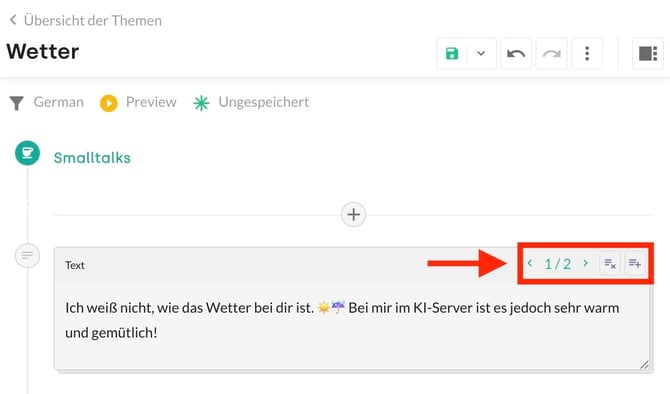
Figure: Creating response variants in the Text block.
- In the top right corner of the text block, click the Plus icon (+) to create a new response variant.
- Use the arrow icons next to the plus icon to switch between stored text variants.
- Click the Delete icon (x) to remove individual variants.
You can store as many response variants per text block as required.
1.2 Advanced context menu and change history
In the Conversation guidance editor, advanced actions are available via the 3-dot menu in the top right corner:
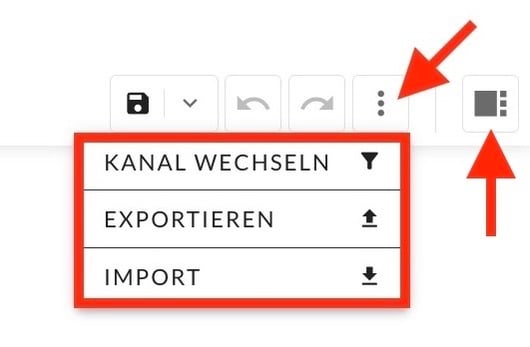
Figure: Advanced actions via the 3-dot menu.
- Switch channel: Allows you to switch between different connected communication channels.
- Export: Exports the configuration of the current element as a JSON file.
- Import: Imports an existing JSON configuration into the element.
- Change history: Clicking the additional functions icon on the far right opens the change history to track previous modifications. It functions identically to the change history for topic content.
2. Welcome
At the beginning of a conversation, the AI chatbot greets users.
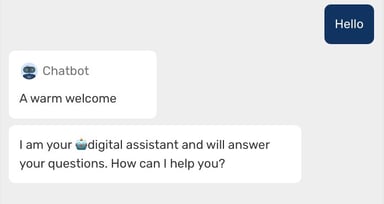
Application example: Execution of the conversation guidance element Greeting in the chat widget.
Best practices
The AI chatbot greets users and clearly communicates that a digital assistant is handling enquiries. A 🤖 robot emoji visually reinforces this. Additionally, the specific subject area where assistance is available is stated. Finally, the chatbot prompts the user to enter their enquiry.
- Text message: "Welcome to [Company Name]."
- Text message: "I am your 🤖 digital assistant and can answer questions about [Topic area, e.g. orders & returns]. How can I help you today?"
3. Not understood
This element takes effect when an entered message cannot be matched with any configured topic.
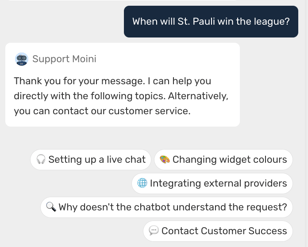
Application example: Delivery of the element Not understood in the AI chatbot.
Phrasing hint and multi-attempt behaviour
Use the Phrasing hint active? toggle to control how the AI chatbot responds to unrecognised messages:
- Toggle enabled (recommended):
- First attempt: On the initial unrecognised enquiry, the AI chatbot asks the user to rephrase their input in different words.
- Subsequent attempt: If the rephrased message still cannot be matched to any topic, the fully configured content of the Not understood element is displayed (including topic suggestions, buttons, and redirects).
- Toggle disabled: The configured content of the element is displayed immediately upon the very first unrecognised enquiry.
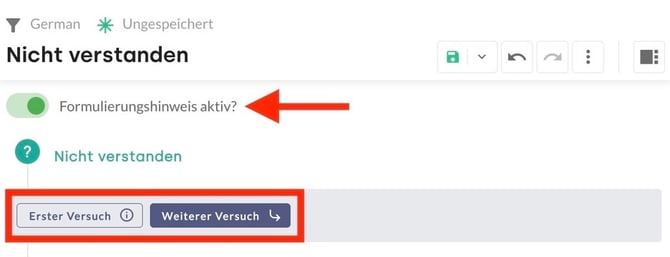
Figure: Configuration of the option Phrasing hint active? in the Hub.
Best practices
The AI chatbot directs users to selected topics where it can assist immediately. In addition, it offers a handover to customer support via a takeover form. Explicit negative statements such as "I did not understand that" are avoided to maintain a positive user experience.
- Topic suggestions: Up to six relevant topics are placed as quick reply buttons below the message.
- Customer support handover: The quick reply button for customer support is positioned last (e.g. featuring a 💬 speech bubble emoji in the title).
- Linking AI agents: When linking to an AI agent, phrase the button title as a complete question (e.g. ✅ "What are the costs?" instead of ❌ "Price"), as this functions as the prompt for response generation.
Sample structure
- First attempt: "Please rephrase your enquiry in different words. Thank you!"
- Subsequent attempt: "Thank you for your message. I can help you directly with the following topics. Alternatively, you can contact our Customer Success Team." + Quick reply buttons
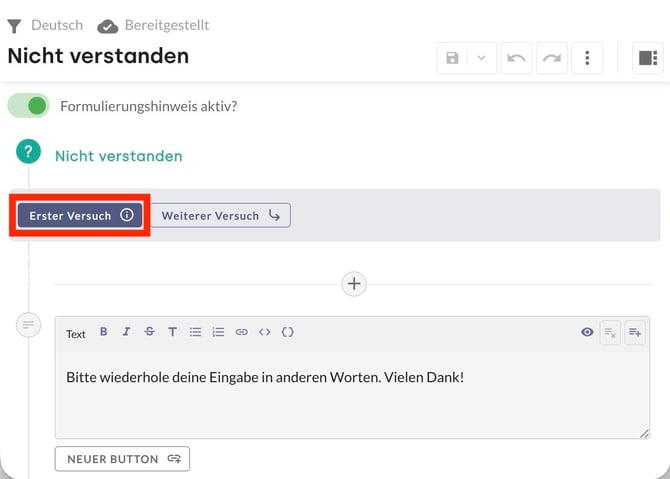
Figure: Editor view for the element Not understood with stored text blocks.
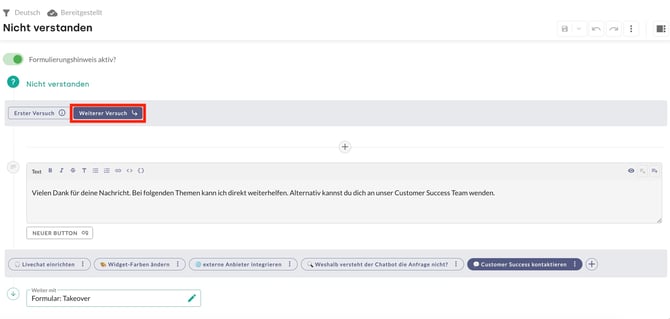
Figure: Assigning topics and takeover as quick replies.
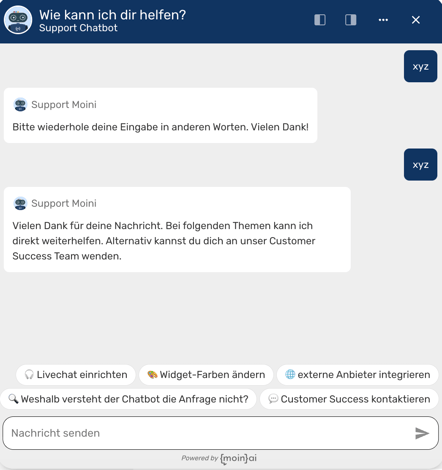
Application example: Display of the Not understood message with quick reply buttons in the chat.
4. Happy Path
The Happy path triggers when users conclude a topic with a positive rating or complete a form successfully.
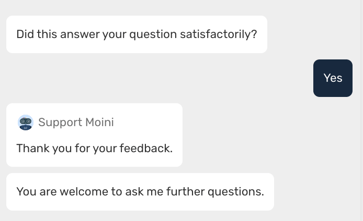
Application example: Execution of the conversation guidance element Happy path.
Best practices
The AI chatbot signals openness to further enquiries and introduces the chatbot menu. Since the primary enquiry has been resolved, this step is ideal for exploratory and supplementary content.
The menu consists of three to six slides with the following specifications:
- Headline: max. 20 characters
- Description: max. 80 characters
- Button label: max. 20 characters
- Button URL: destination web address
- Image: 955 × 500 px in 1:1.91 aspect ratio as PNG or JPG (< 150 KB)
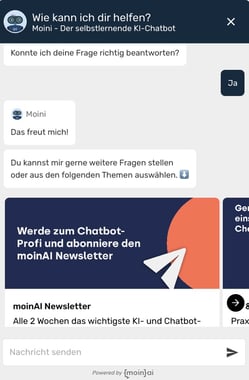
Figure: Configuration of menu slides in the Happy path section.
5. Unhappy Path
The Unhappy path triggers when users decline a confirmation question or a rating question.
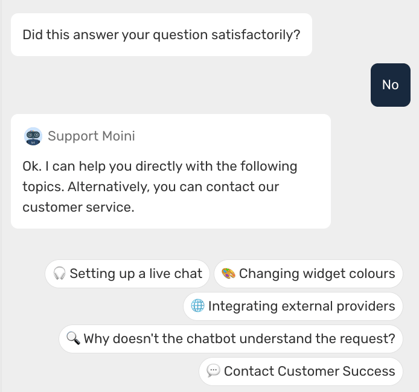
Application example: Execution of the conversation guidance element Unhappy path.
Best practices
The response begins with a short, neutral acknowledgement (e.g. "OK" or "Understood"). Subsequently, the AI chatbot offers thematic alternatives as well as a transfer to customer service. Similar to the element Not understood, key topics and the takeover form can be stored as quick reply buttons.
Using response variants is also recommended here to make the dialogue feel more natural.
- Text message: "Understood. I can help you directly with the following topics. Alternatively, you can transfer your enquiry to our customer service team." + Quick reply buttons
6. Rating
This element displays a rating question after a topic has been answered. Please note: Clicking 'Yes' or 'No' the content of the Happy Path or the Unhappy Path will be played.
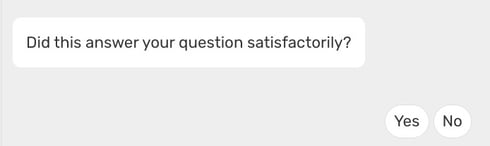
Application example: Execution of the conversation guidance element Rating.
Best practices
The AI chatbot enquires in a short message whether the enquiry was resolved. The response logic is structured as follows:
- Selection "Yes": Brief positive confirmation ("Gladly!" or "Understood") followed by an automatic redirection to the Happy path.
- Selection "No": Brief neutral acknowledgement without excessive apologies, followed by an automatic redirection to the Unhappy path.
7. Thanks
The element Thanks responds to expressions of gratitude from users (e.g. "Thank you", "Many thanks", "Great, thanks for your help").
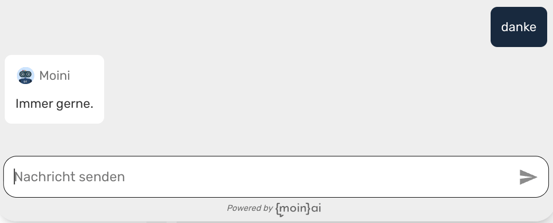
Application example: Execution of the element Thanks.
Best practices
The AI chatbot acknowledges thanks briefly and pleasantly without interrupting the conversational flow unnecessarily. Storing multiple response variants ensures the reaction remains lively and varied even during repeated expressions of gratitude.
Sample phrases:
- "You are very welcome! Can I help you with anything else?"
- "Glad to help! Feel free to reach out whenever you have further questions."
- "Happy to help!"
Optionally, quick reply buttons for additional topics or the main menu can be offered.
8. Unrequested file upload
This element triggers when users upload a file (such as an image or a PDF document) into the chat independently, without being prompted in a preceding form step.
This element is only used when a chat interface other than the moinAI Chat Widget is deployed, such as when using the moinAI Channel API or WhatsApp chatbots.
Best practices
Since the AI chatbot cannot automatically process files outside of structured form workflows, a transparent notification is displayed to users. At the same time, alternative pathways to resolve the enquiry are provided.
Sample structure
- Notice text: "Thank you for the file. Please note that I cannot automatically evaluate documents sent in the regular chat stream."
- Solution path: Reference to an appropriate form with file upload functionality (e.g. damage report or support enquiry) or transfer to customer service via a quick reply button.