![logo_moinai-full-transparent-1.png]](https://helpcenter.moin.ai/hs-fs/hubfs/logo_moinai-full-transparent-1.png?height=40&name=logo_moinai-full-transparent-1.png)
The publication status in the hub provides a transparent overview of all pending changes and enables precise control over the publication of chatbot content – even across multiple channels.
The central listing of all edited content ensures that only fully reviewed changes are published live. This prevents the accidental publication of drafts and increases quality assurance within the AI chatbot.
1. How the publication overview works
The overview can be accessed via the Publish button at the top right of the Hub navigation. Clicking this button does not trigger the immediate publication of all content. Instead, the Publishing Status page opens, which serves as a control layer.
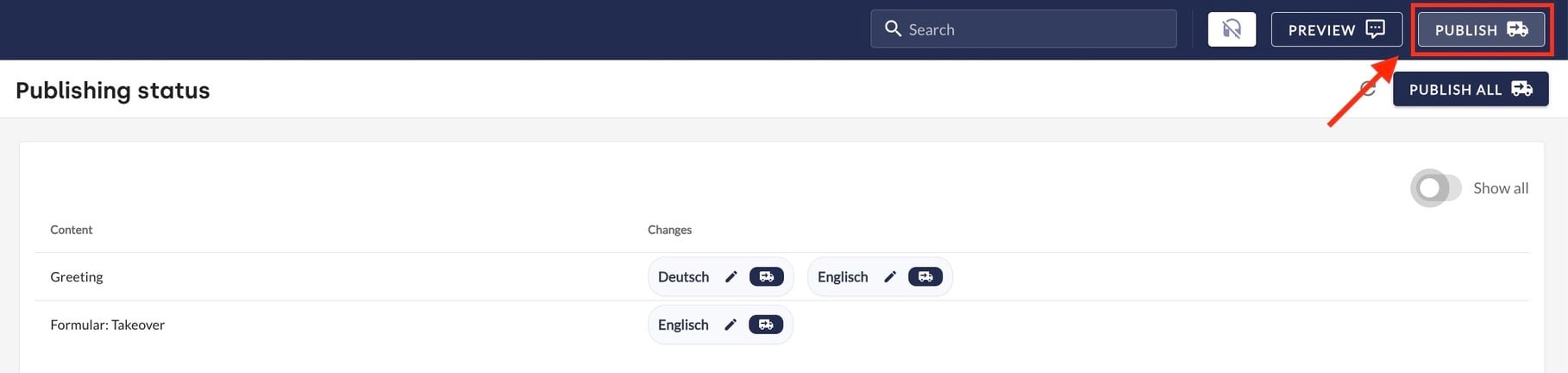
This view lists all chatbot content (e.g. topics and forms) in a table format that has been modified since the last publication. The display is broken down by channel.
2. Overview of the most important functions
The overview offers various tools for efficiently managing the publication process:
-
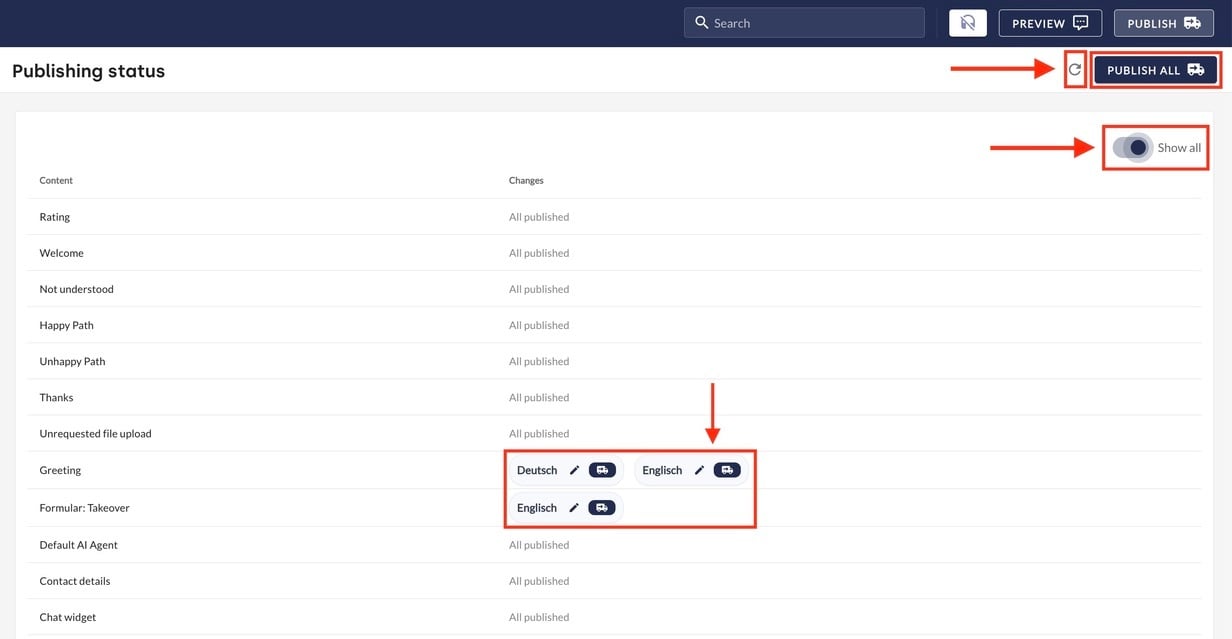
Individual publication per channel: The delivery van symbol with an arrow in the respective row allows you to specifically publish only the changes for a specific content in a specific channel (e.g. only in the widget or only for a language channel).
-
Global publishing: The Publish All button at the top right of the page triggers the live publication of all pending changes for all channels simultaneously.
-
Direct access to the editor: A click on the pencil icon opens the respective content editor (e.g. the corresponding form or topic) directly so that you can make final corrections.
-
Refreshing the list: The circle icon with an arrow (Refresh) triggers a new search for changes in the system and updates the list.
-
Display filter: By default, only content with open changes is displayed. By activating the Show all toggle, content that has already been published is also included in the list.
3. Step-by-step: Publishing content
The publishing process is described step-by-step below:
-
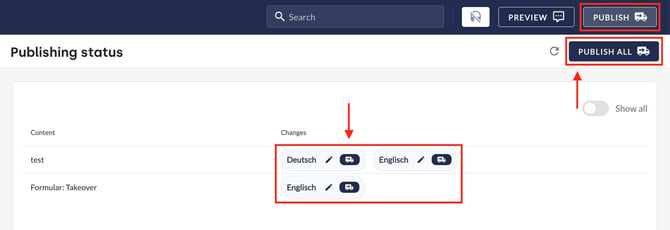
Access the publication status overview page by clicking the Publish button at the top right of the hub navigation.
-
Check the listed content in the Changes column. This column clearly shows which content has unpublished statuses in which channels. If only one channel is used, the name is not displayed.
Optional: Click on the pencil icon to edit and check the content in the editor. -
Publishing:
-
Individual content: Individual content is published by clicking on the delivery van icon with an arrow next to the desired channel in the corresponding row.
-
All content: Click on the Publish All button at the top right of the page to publish all changes.
-
If there are no more unpublished changes, the page displays the message ‘All content has been published 🎉’.