![logo_moinai-full-transparent-1.png]](https://helpcenter.moin.ai/hs-fs/hubfs/logo_moinai-full-transparent-1.png?height=40&name=logo_moinai-full-transparent-1.png)
Automatic livechat translation facilitates communication between users and livechat agents when they speak different languages. Two options are available for this purpose: channel-based automatic translation, which follows the configured channel language, and livechat multi-language support, which automatically detects the language of the user.
- Set profile languages for livechat agents
- Enable automatic translation
- Livechat multi-language support
1. Set profile languages for livechat agents
Language skills can be stored in the respective profile for all live chat agents. This information forms the basis for automatic translation in live chat.
Profile languages can be maintained in two ways: by supervisors or by the live chat agents themselves.
Entering languages by supervisors
-
Open the agent overview via the menu item Bot Settings > Livechat.
-
In the Agents area, open the desired profile using the pencil icon.
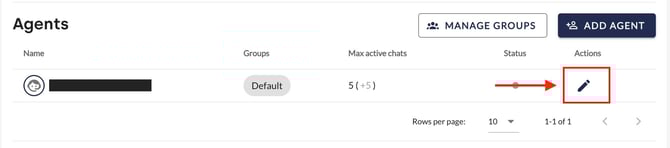
-
Via Edit Agent, enter the spoken languages or select from the list of available languages using the down arrow.
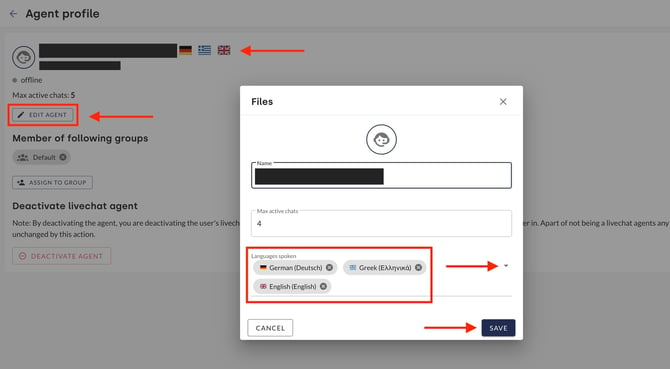
- Apply the changes by clicking Save.
The stored languages will then be displayed next to the profile name.
Set language via your profile
-
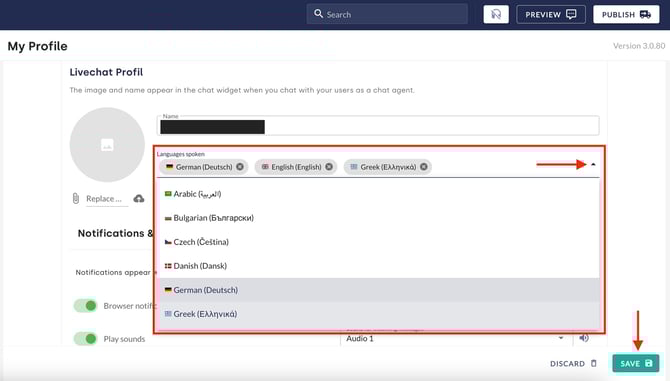
Open your personal profile view in the Hub via the menu item Profile > My Profile.
-
In the Livechat Profile section, enter your language skills in the Languages Spoken field.
-
Click Save to apply the changes.
2. Enable automatic translation
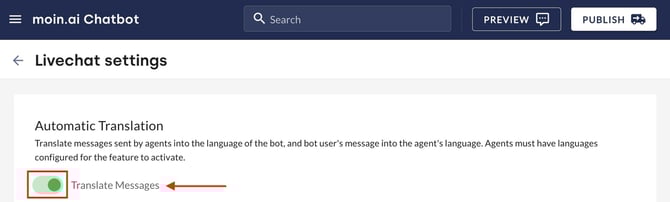
Automatic translation in live chat is disabled by default and must be enabled via the live chat settings in the moinAI Hub. This is done as follows:
-
Via the Bot Settings menu item, open the Livechat section.
-
In the Automatic Translation section, activate the Translate Messages toggle.
How it works
For each incoming livechat session, automatic translation compares the configured channel language with the languages recorded in the assigned agent profile:
- Match found: If the channel language matches at least one language listed in the agent profile, no translation is applied.
- No match: If the channel language and agent profile languages differ, the system translates all messages automatically.
Standard automatic translation operates entirely on a channel basis. The language configured for the channel in the Hub is the sole deciding factor; the system does not analyse the language of messages actually written by users. For example, if a user writes in English within a channel configured for German, translation only takes effect if the assigned agent does not have German listed in their profile.
To detect and translate the actual language used by visitors dynamically, use livechat multi-language support.
3. Livechat multi-language support
Unlike standard automatic translation, which strictly follows the static channel language, multi-language support automatically detects the language of the user: either from browser settings or based on messages written before the livechat starts.
For livechat multi-language support to take effect, both of the following settings must be active:
- Enable multi-language support for the channel: Under Bot Settings > Channel Management, activate multi-language support for the desired channel. See the guide on configuring multi-language support.
- Enable standard livechat translation: Automatic translation under Bot Settings > Livechat must also be activated.
If either setting is missing, multi-language translation will not function.
Translation takes place entirely in the background for users. They receive no notification indicating that their messages are being translated. Livechat agents, however, recognise translated messages by a globe icon displayed next to the relevant messages.
Use case example
Multi-language support is enabled for the channel. A user with browser language set to Mandarin (Chinese) opens the chatbot. The chatbot recognises the browser language and automatically translates all content (editorial messages, forms, livechat conversations, etc.).
Agent view
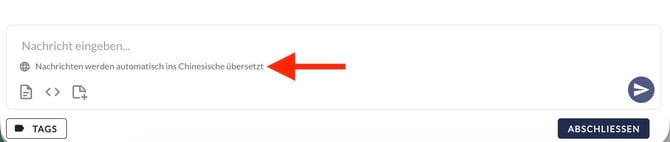
Figure: Livechat interface displaying incoming translated messages.
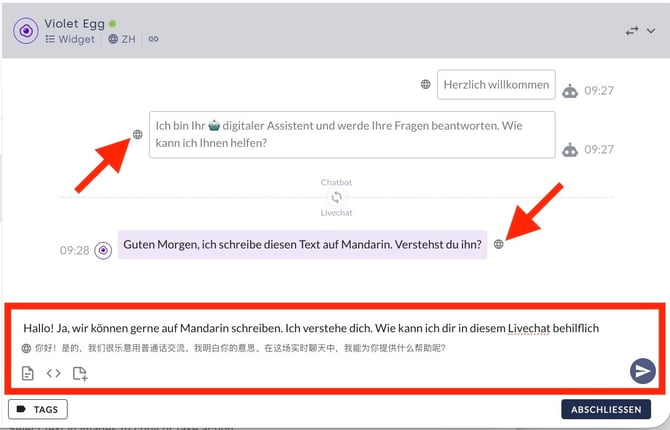
Figure: Agent input area with automatic translation enabled.
User view
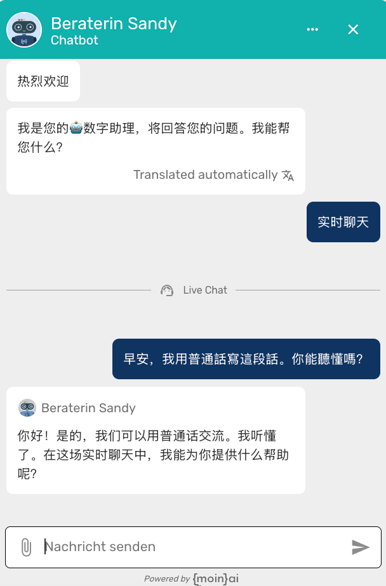
Figure: Widget appearance for the website visitor.