![logo_moinai-full-transparent-1.png]](https://helpcenter.moin.ai/hs-fs/hubfs/logo_moinai-full-transparent-1.png?height=40&name=logo_moinai-full-transparent-1.png)
In addition to topics and agents, the chatbot has forms that can be used to request information from users within the chat history using free text or predefined options. The information is then sent to the responsible team for processing via a notification (email, live chat, ticket, etc.). The escalation of an enquiry via the chatbot form is referred to as a human takeover.
Each chatbot has an optional form: Takeover for enquiries that could not yet be resolved. Depending on the licence, additional forms can be created for pre-qualifying various enquiries (service, sales, product, etc.).
The frequency with which forms are triggered by users can be viewed in the Statistics section under the Human Takeover metric. Key figures on the usage of individual forms can be viewed in Form Insights.
1. Create and customise forms
In the Forms menu item, you can view all forms and customise their content using the form editor. Further information on creating and designing a form with the form editor is described in this article.
To optimise the conversion rate, forms should be kept short and only necessary mandatory fields should be requested. If you have any questions about optimal design, the Customer Success Team will be happy to assist you.
2. Link forms to editorial content
Forms in basic conversational design (Basic CX)
Forms can be offered in conversations via quick reply buttons. The Form: Takeover, which usually asks for a complete enquiry and email address, is offered as standard in the Not understood message and in the unhappy path, in line with best practices. An overview of the elements of conversation management with tips for content can be found in this article.
Forms in topics
Forms can also be easily linked to topics. To do this, a follow-up must be set as the final element at the end of the topic.
In a follow-up, users can be offered a form with a follow-up question. For the Form: Takeover, the follow-up question could be, for example, ‘Would you like to send a message to the service team now?’ If the answer is yes, users are redirected to a defined form, thereby triggering the takeover. If users decline the follow-up, the rating question is displayed.
The respective form must be stored in the appropriate place or linked to the relevant editorial topic via follow-up. More information on human takeover can be found in this article.
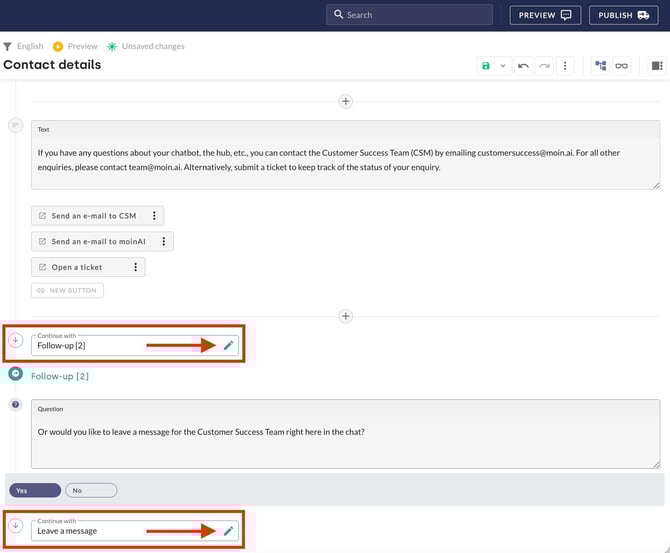
Example: Topic with a form as a follow-up
3. Offer forms in agents
To increase the conversion rate, forms can be placed as a call-to-action immediately after a response from the AI agent. This is done via follow-up actions that trigger an automatic query (e.g. ‘Would you like to receive more information about motorhomes?’) after a piece of information has been provided.
If the user responds positively, they are seamlessly redirected to the defined form, which supports structured conversation and increases the completion rate for self-service processes. In order for the action to be triggered in the chat history, a corresponding instruction must be stored in the AI agent.
How to create follow-up actions for AI agents in detail is described in this article.
4. Redirection to another form or intent
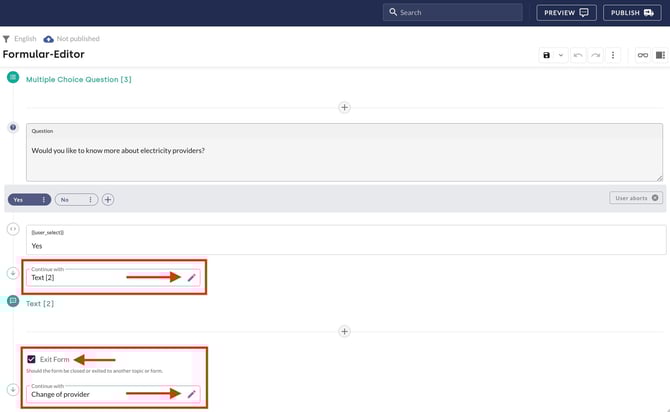
Within a form path, for example after a selection via multiple-choice options, redirection to another form or intent can take place.
-
After the multiple-choice selection as in the example, text ist selected in the Continue with field.
-
By activating the Exit form checkbox (below the text field), the Continue with option appears again.
-
The desired target form or intent is selected there.
This structure allows data to be forwarded to different recipients based on the selected path within the query. Since the transfer type, such as email, live chat or webhook, is defined for each form, linking multiple forms enables precise distribution of information.
5. Send forms
Once a form has been completed, the information collected is transmitted. You can choose between sending an email, integrations with external applications, webhooks or live chats.
For email delivery, the Automatic Template option can be enabled. This allows you to automatically create email notifications directly within chatbot forms. Different recipients, email addresses and subject lines can be defined individually for each form.
Detailed configuration and setup of the automatic email template are described in the article on the form editor. If you have any questions or require customisation, the Customer Success Team is available to assist at customersuccess@moin.ai.
6. Forms with webhooks
The information requested in forms can be forwarded using webhooks. These are used to collect the information necessary for an external query (e.g. the departure time, location and date of a train).
The functionality is divided into two directions:
-
Data transmission: Once data collection is complete, the data is transmitted via webhook from the form to a predefined target URL.
-
Data reception: The results of an external query can be fed directly back into the chat via the webhook to provide users with a final answer.
A detailed technical description of how webhooks are implemented can be found in this article.