![logo_moinai-full-transparent-1.png]](https://helpcenter.moin.ai/hs-fs/hubfs/logo_moinai-full-transparent-1.png?height=40&name=logo_moinai-full-transparent-1.png)
Service hours define when the live chat in the AI chatbot is available. Outside these hours, the AI chatbot does not hand users over to the live chat but guides them through an alternative path in the form. As a result, requests only reach the live chat when the team is actually on duty.
A live chat only starts if a live chat agent is available. After a longer period of inactivity, the moinAI Hub automatically sets live chat agents to offline (timeout). Service hours add an extra layer of security to this availability logic.
Use case: At 6:30 pm, a live chat agent is still logged in and active in the moinAI Hub, so no timeout applies. Because the service hours have already ended, the AI chatbot still does not start a live chat.
Service hours can also guide users through different paths in the form depending on the time of day.
Prerequisites
- A takeover form for the moinAI live chat
- The service hours webhook, which the moinAI Customer Success Team adds to the AI chatbot on request
Table of contents
- How it works
- Set up service hours in the moinAI Hub
2.1 Integrate the webhook
2.2 Adjust the webhook body
1. How it works
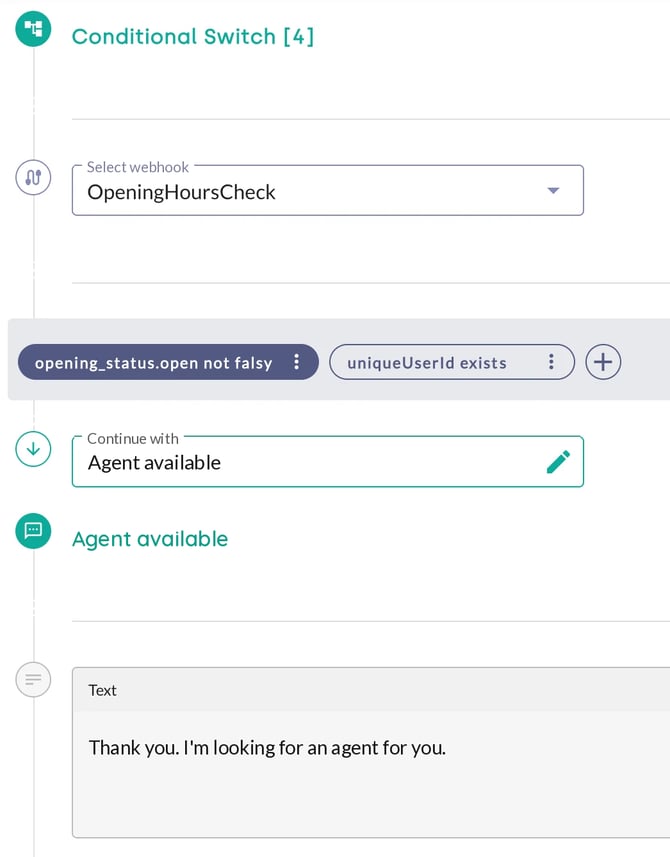
A conditional switch sits at the very beginning of the takeover form. The conditional switch calls the service hours webhook, which reports whether the current time is inside or outside the service hours. Depending on the result, the form guides users as follows:
- Inside service hours: The form forwards users to the live chat.
- Outside service hours: The form continues without the live chat and offers alternatives.
2. Set up service hours in the moinAI Hub
The setup consists of two steps: first, the webhook is integrated into the AI chatbot. After that, you add the required times to the webhook body.
2.1 Integrate the webhook
On request, the moinAI Customer Success Team adds the service hours webhook to the AI chatbot. The OpeningHoursCheck webhook is then available in the moinAI Hub.
2.2 Adjust the webhook body
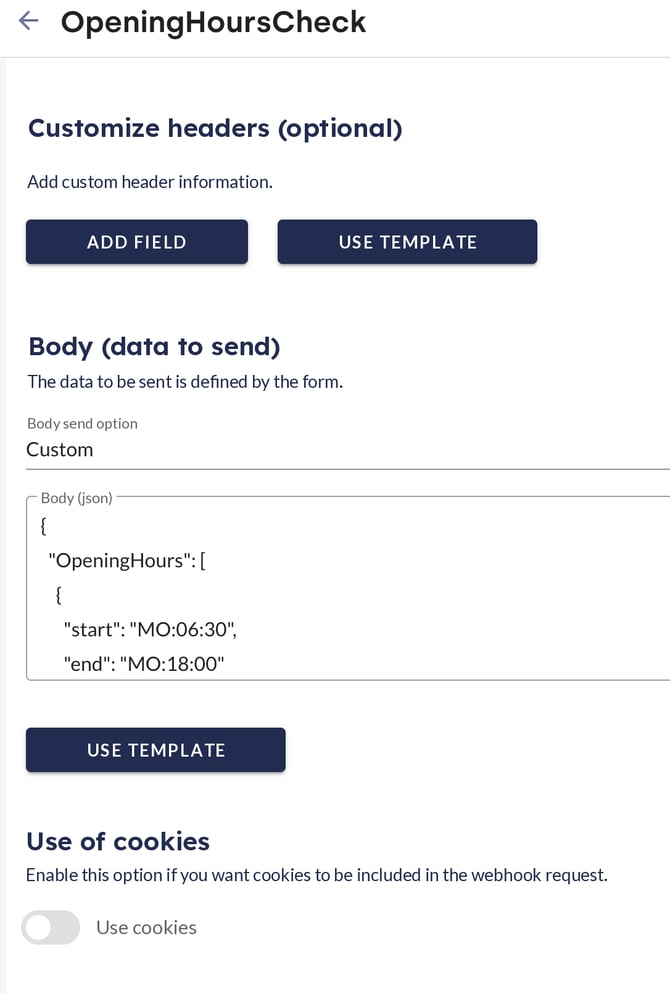
To maintain the service hours, go to Integrations > API Connector > Webhook Settings > Body in the moinAI Hub. Each time slot consists of a start (start) and an end (end), given as a weekday and a time in 24-hour format, based on Berlin time (Europe/Berlin).
{

"OpeningHours": [

{ "start": "MO:06:30", "end": "MO:18:00" },

{ "start": "DI:06:30", "end": "DI:12:30" },

{ "start": "FR:22:00", "end": "SA:02:00" }

]

}
- Format:
Weekday:HH:MM, e.g.MO:06:30 - Weekdays: The webhook uses German abbreviations:
MO(Monday),DI(Tuesday),MI(Wednesday),DO(Thursday),FR(Friday),SA(Saturday),SO(Sunday) - One line per time slot: An additional line adds a time slot. Deleting a line removes the time slot.
- Across several days: A time slot can span several days, e.g. from Friday 10:00 pm to Saturday 2:00 am.
Important: Only change the time slots within the list. The rest of the body structure must remain unchanged so that the service hours check works. Separate multiple time slots with a comma and do not add a comma after the last time slot.