![logo_moinai-full-transparent-1.png]](https://helpcenter.moin.ai/hs-fs/hubfs/logo_moinai-full-transparent-1.png?height=40&name=logo_moinai-full-transparent-1.png)
To address users’ specific enquiries on the website, the chat widget can launch directly with predefined information. Input into search fields, button selections or form submissions on the website are passed to the AI chatbot as context. In this way, the conversation in the widget begins seamlessly with the relevant topic. This saves time and makes the conversation flow significantly more efficient for users.
1. Preparation in the Hub
Before the handover can be set up on the website, the relevant targets must be defined in the Hub:
-
Intents: Intents include topics and agents that are to be triggered when the widget is launched. These must be created and published in the Hub in advance. How topics are defined and created is described in this article. Information on creating AI agents is described in this article.
- Forms: If a form is to be launched, it must be created in the Hub under the ‘Forms’ menu item and its technical name (ID) noted down. What forms are and how they are created is described in this article.
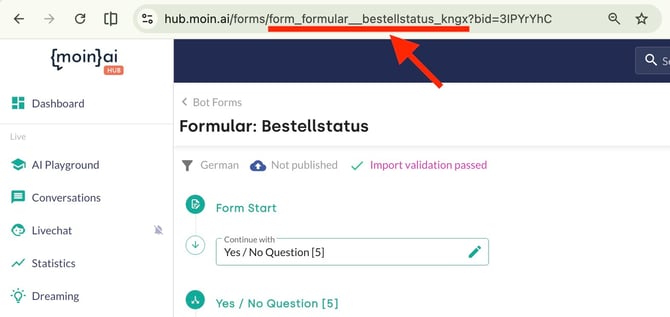
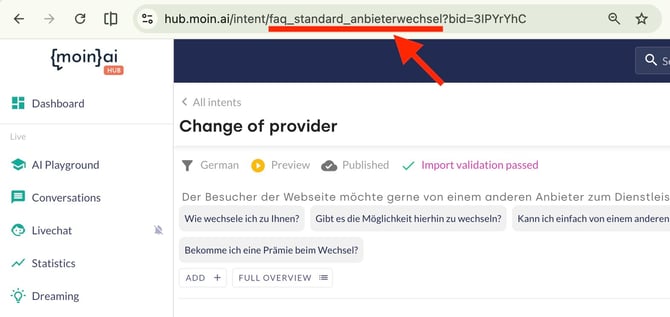
The technical name of the intent or form is the most important element for data transfer. It must be copied exactly as it is stored in the Hub. The technical name can be found in the URL when opening the editorial topic or the form in the Hub.
Form: Everything between the second slash "/" and “?” (the question mark).
Topic: Everything between second slash "/" and “?” (the question mark).
2. Technical implementation on the website
A minor code adjustment is required on the website to enable the integration. The following information should be forwarded to the technical department or the person responsible for website maintenance:
-
The function: The
startWith()function of the moinAI JavaScript API is used. -
The documentation: A detailed technical description, including code examples, can be found in the API documentation.
-
Input: Text (e.g. a search term), forms or intents can be passed as input.
3. Use cases
-
Search bar: Users enter a term into the website’s search box. When they submit the search, the chat widget opens and the AI chatbot directly answers the relevant question based on the search term.
-
Quote button: Clicking a ‘Request a quote’ button on the website opens the chat widget directly and loads the relevant contact form, without users having to search for the form manually.
- Retrieving information: Clicking on an element such as ‘Get in touch’ on the website immediately opens the chat widget and launches the pre-defined topic for contact information, so that users can obtain the information they need directly within the chat.
4. Live demo
An interactive demonstration is available to test how the handover of a context feels for users on the website.
🚀 Live demo: Open a form or topic directly in the chat
Clicking on the demo link opens the chat widget directly via the startWith() function. Instead of the standard greeting, the widget immediately opens with the pre-set topic or form and displays the following message in the chat:
"Hi, this is an editorial topic that you triggered by clicking the link. The startwith() function opens the chat widget and, instead of a greeting, starts with the pre-set form or topic. I could now share specific or relevant information with you or launch a form to address your specific inquiry. Afterward, I’ll suggest additional topics and am available to answer any follow-up questions.
Do you have any further questions about this topic, or do you need help setting this up yourself?"
Users are then offered the following multiple-choice response options as examples:
-
Help with setup: Allows the enquiry to be submitted via email, ticket or directly in the chat for processing by the Customer Success Team.
-
Ask a question about the interaction between the website and the chat widget: Hands the conversation over to the specialist AI agent for widgets & channels to answer specific technical questions.
🚀 Live demo: Open a form or topic directly in the chat